

Processor Keys in the Portal
Everything the key endpoints do is also available in the Rightfoot portal, under Payments → Connection. Use it when the person who holds the keys at your payment processor is not the person wiring the integration — nothing on this page needs an API call, and the keys it saves are the same ones the API lists.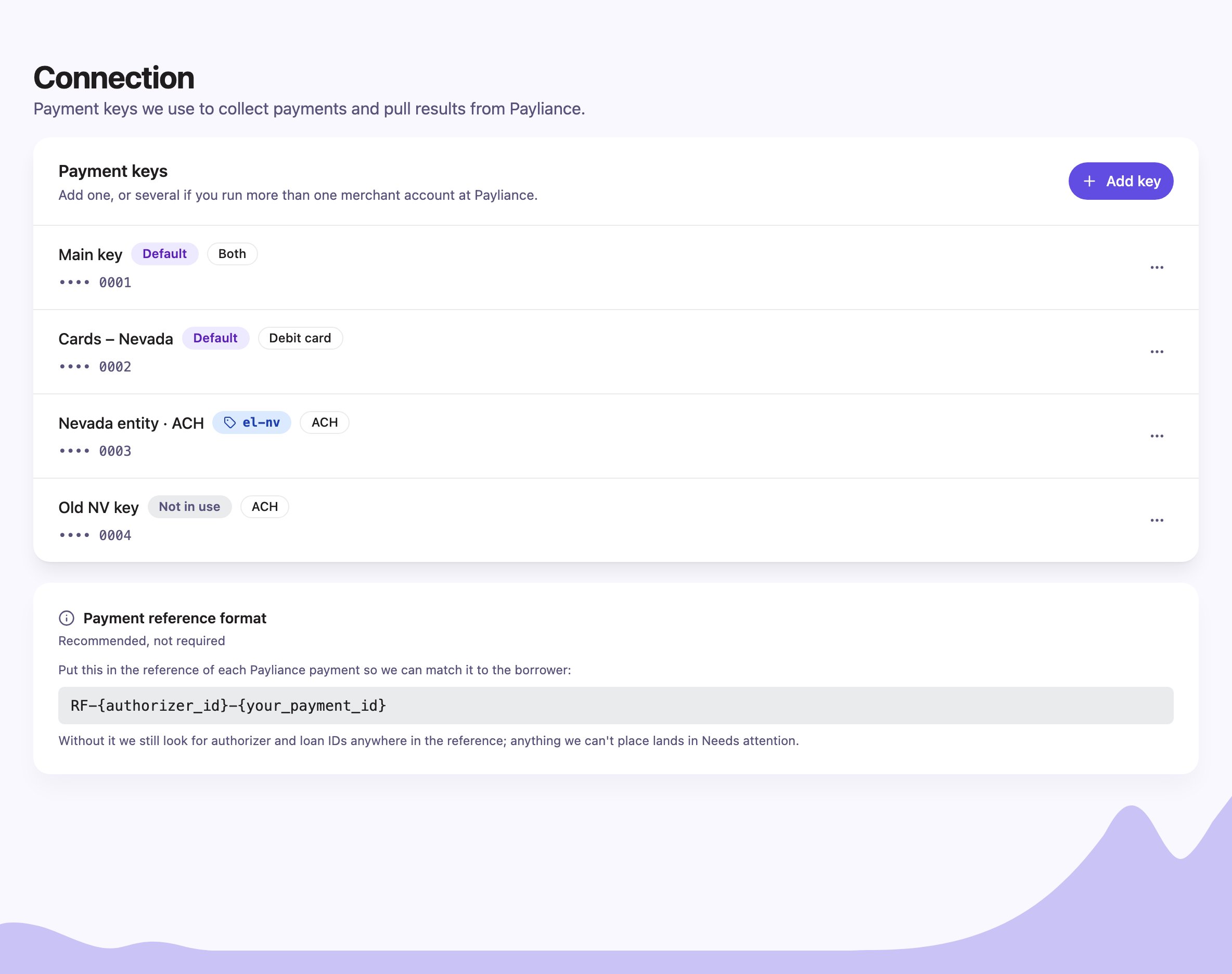
Payments → Connection: one row per key, showing whether it is a default, a tagged key, or not in use, and which payments it takes.
If you don’t see Payments in the portal sidebar, ask Rightfoot to enable it for your account.
Add a key
- Click Add key and paste the key from your processor. It is stored in a vault as soon as you save; afterwards the page shows only its last four characters.
- How should we use it? — choose Default key for accounts you enroll without a tag, or Tagged key for accounts you enroll with one. A key is one or the other.
- Which payments can it take? — ACH, Debit card, or Both. Pick what the merchant account behind the key is set up for.
- For a tagged key, enter the Tag: lowercase letters, numbers, dashes or underscores. Send the same value as
merchant_refwhen you enroll those borrowers. It cannot be changed after saving. - Give the key a Label. The portal suggests one from your choices; it only appears in the portal, and you can rename it any time.
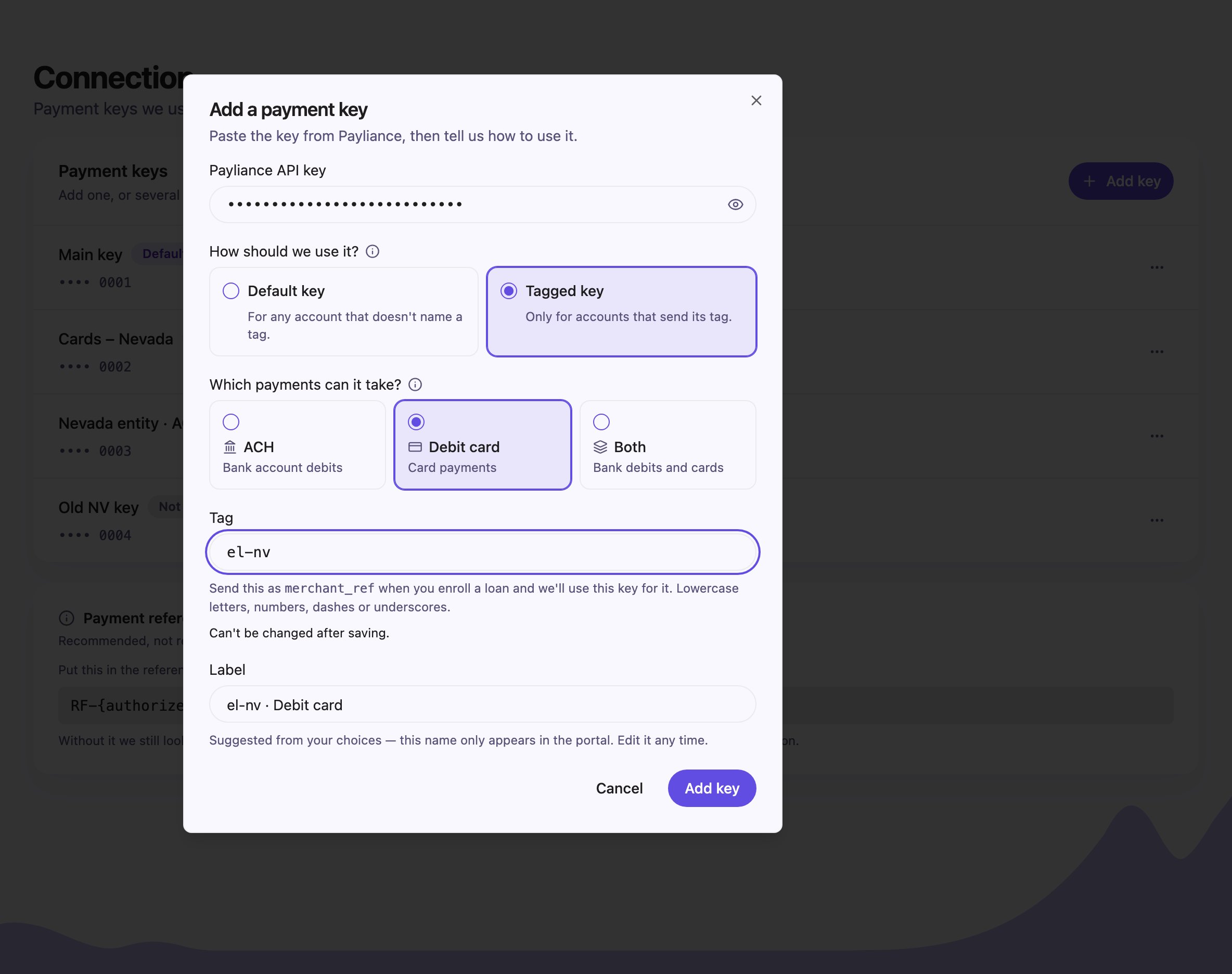
Adding a tagged debit-card key. The label is suggested from the tag and the payment type.
POST /v1/payment_connections:
Which keys do you need?
- Your merchant accounts are split by payment type only — one for ACH, one for cards. Add each as a Default key with the matching payment type, or a single Default key set to Both if one account takes everything. Nothing extra is needed on enrollment: Rightfoot picks the key by the payment type being used.
- Your merchant accounts are split by entity, state or brand. Add each as a Tagged key and send its tag as
merchant_refwhen you enroll those borrowers. You can still keep a Default key for anyone enrolled without a tag. - Both. A tag can hold one key per payment type, so
acme-nvcan have an ACH key and a debit-card key.
Keep every payment type covered
A payment type with no default key skips every borrower enrolled without a tag. The page warns you and offers two fixes: Add a default key, or Choose an existing key to promote a saved key that is not in use.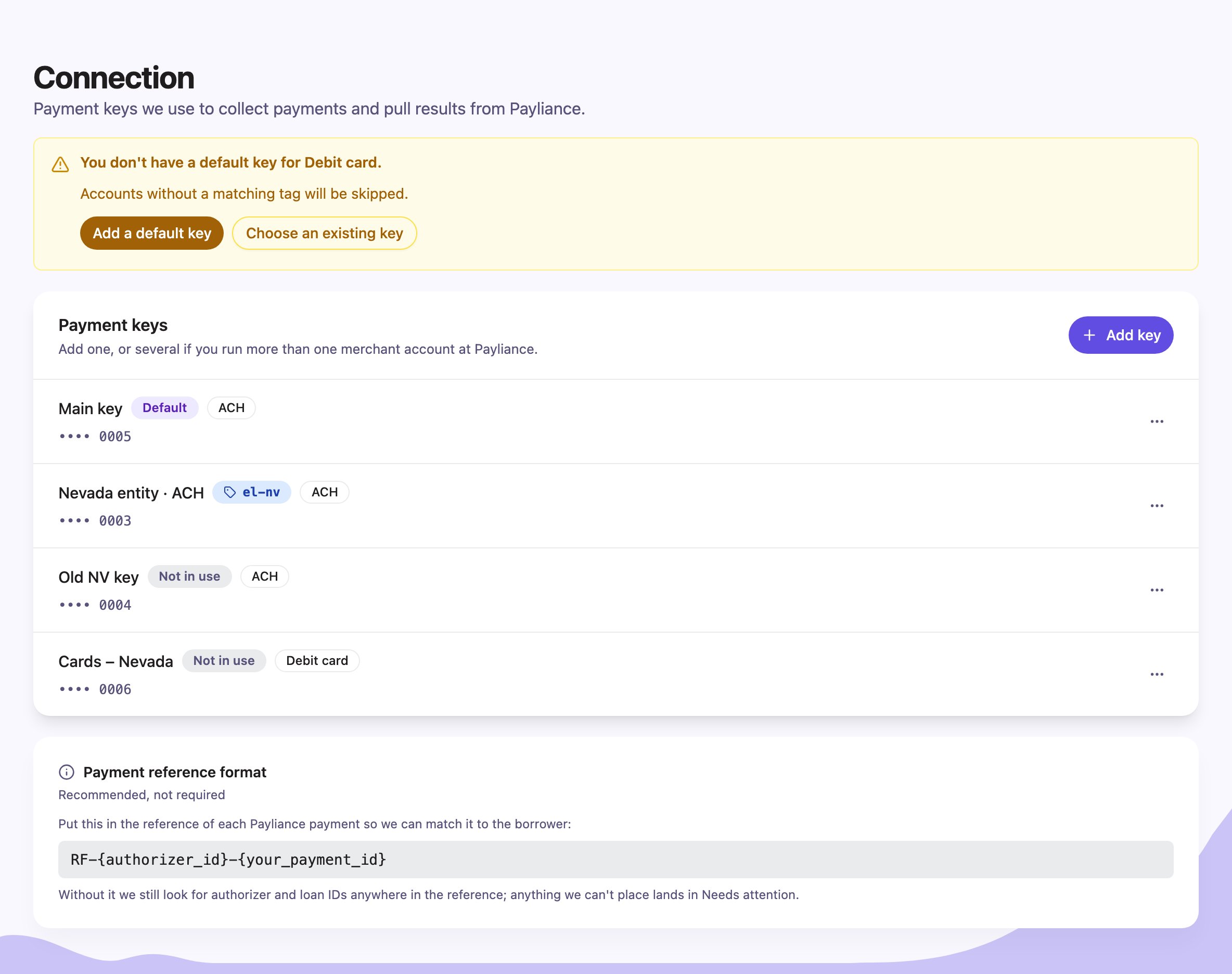
No default key for debit card: accounts without a matching tag are skipped until one is set.
Manage a key
Open the row menu (⋯) on any key.The Payment reference format card at the bottom of the page is about matching, not keys: put
RF-{authorizer_id}-{your_payment_id} in the reference of each payment you create at the processor so Rightfoot can match its result to the borrower.